Windows Guide
Notice on windows installer
There is an easier way in the works but this will take time to make, sorry about that. - Toastie
This way of installing and using Ellie is nearly ready so keep and eye out for that part of the guide. - Toastie
Creating your own Discord bot
This guide will show you how to create your own discord bot, invite it to your server, and obtain the credentials needed to run it.
- Go to the Discord developer application page.
- Log in with your Discord account.
- Click New Application.
- Fill out the
Namefield however you like, accept the terms, and confirm. - Go to the Bot tab on the left sidebar.
- Click on the
Add a Botbutton and confirm that you do want to add a bot to this app. - Optional: Add bot’s avatar and description.
- Copy your Token to
creds.ymlas shown above. - Scroll down to the
Privileged Gateway Intentssection- You MUST enable the following:
- PRESENCE INTENT
- SERVER MEMBERS INTENT
- MESSAGE CONTENT INTENT
- You MUST enable the following:
Inviting your bot to your server
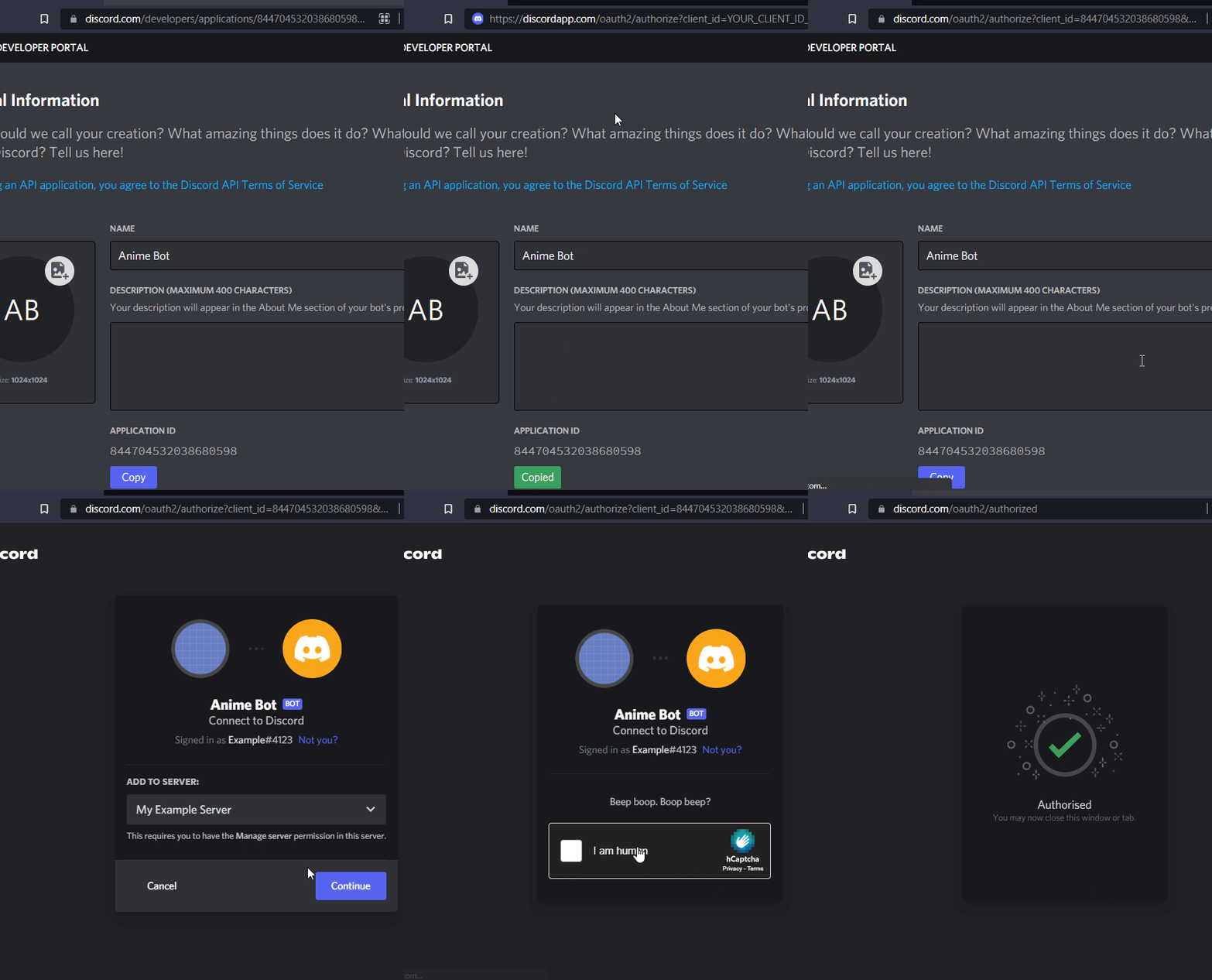
- On the General Information tab, copy your
Application IDfrom your applications page. - Replace the
YOUR_CLIENT_ID_HEREin this link:https://discord.com/oauth2/authorize?client_id=YOUR_CLIENT_ID_HERE&scope=bot&permissions=66186303with yourClient ID - The link should now look something like this:
https://discord.com/oauth2/authorize?client_id=123123123123&scope=bot&permissions=66186303 - Access that newly created link, pick your Discord server, click
Authorizeand confirm with the captcha at the end - The bot should now be in your server
Windows From Source
Prerequisites
Install these before proceeding or your bot will not work!
- .net 8 - needed to compile and run the bot
- git - needed to clone the repository (you can also download the zip manually and extract it, but this guide assumes you’re using git)
- Redis (OPTIONAL)- to cache things needed by some features and persist through restarts
Installation Instructions
Open PowerShell (press windows button on your keyboard and type powershell, it should show up; alternatively, right click the start menu and select Windows PowerShell), and navigate to the location where you want to install the bot (for example cd ~/Desktop/)
git clone https://toastielab.dev/EllieBotDevs/elliebot -b v6 --depth 1cd EllieBotdotnet publish -c Release -o output/ src/EllieBot/cd outputcp creds_example.yml creds.yml- Open
creds.ymlwith your favorite text editor (Please don’t use Notepad or WordPad. You can use Notepad++, VSCode, Atom, Sublime, or something similar) - Enter your bot’s token
- Run the bot
dotnet EllieBot.dll - 🎉
Update Instructions
Open PowerShell as described above and run the following commands:
- Stop the bot
- ⚠️ Make sure you don’t have your database, credentials or any other EllieBot folder open in some application, this might prevent some of the steps from executing succesfully
- Navigate to your bot’s folder, example:
cd ~/Desktop/EllieBot
- Pull the new version, and make sure you’re on the v6 branch
- ⚠️ the first 3 lines can be omitted if you’re already on v6. If you’re updating from v5, you must run them
git remote set-branches origin '*'git fetch -v --depth=1git checkout v6
git pull- ⚠️ If this fails, you may want to stash or remove your code changes if you don’t know how to resolve merge conflicts
- ⚠️ the first 3 lines can be omitted if you’re already on v6. If you’re updating from v5, you must run them
- Backup old output in case your data is overwritten
cp -r -fo output/ output-old
- Build the bot again
dotnet publish -c Release -o output/ src/EllieBot/
- Remove old strings and aliases to avoid overwriting the updated versions of those files
- ⚠ If you’ve modified said files, back them up instead
rm output-old/data/aliases.ymlrm -r output-old/data/strings
- Copy old data
cp -Recurse .\output-old\data\ .\output\ -Force
- Copy creds.yml
cp output-old/creds.yml output/
- Run the bot
cd outputdotnet EllieBot.dll
🎉 Enjoy
Music prerequisites
In order to use music commands, you need ffmpeg and yt-dlp installed.
- ffmpeg-32bit | ffmpeg-64bit - Download the appropriate version for your system (32 bit if you’re running a 32 bit OS, or 64 if you’re running a 64bit OS). Unzip it, and move
ffmpeg.exeto a path that’s in your PATH environment variable. If you don’t know what that is, just move theffmpeg.exefile toEllieBot/output. - youtube-dlp - Click to download the
yt-dlp.exefile, then moveyt-dlp.exeto a path that’s in your PATH environment variable. If you don’t know what that is, just move theyt-dlp.exefile toEllieBot/system.